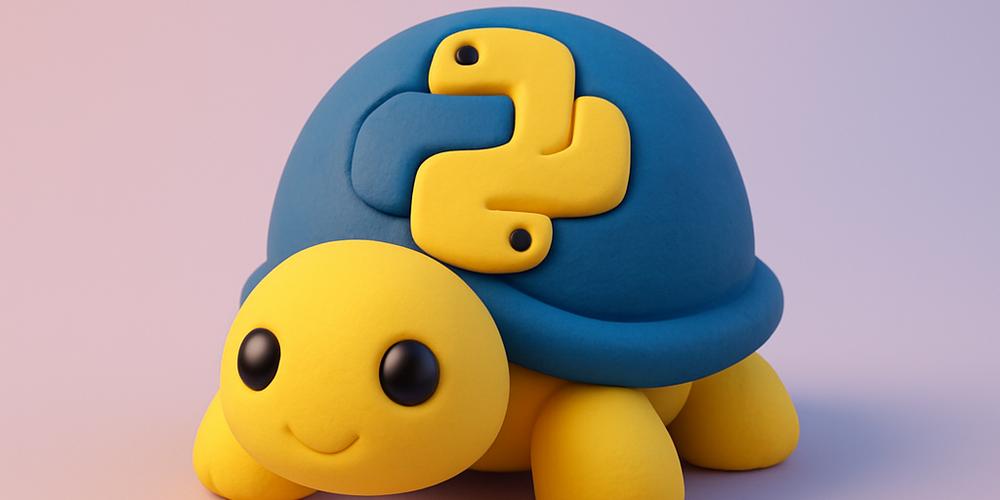
Python Turtle drawing turns programming instructions into visible movement. Instead of only printing values in a terminal, you control a cursor that moves across a window and leaves lines behind. This immediate feedback makes Turtle one of the most approachable ways to practice loops, functions, coordinates, colors, and keyboard events.
In this guide, you will create a window, move and rotate a turtle, draw geometric shapes, fill them with color, repeat patterns with loops, react to keys, and build a complete interactive spiral-art project. Turtle is part of Python’s standard library, so most desktop Python installations do not require an additional package.
New programmers may also benefit from the Python beginner guide. When you are ready for a real-time game framework, continue with Pygame for beginners.
What Is Python Turtle?
Turtle graphics uses a movable drawing cursor. You give the cursor commands such as move forward, turn left, lift the pen, change color, or draw a circle. Python provides both a simple function-based interface and an object-oriented interface. This tutorial uses objects because multiple turtles and larger programs are easier to manage that way.
The official Python Turtle documentation describes the full API. Turtle is built on top of Tk, so it needs a graphical desktop environment. On some Linux systems, the Tk package may need to be installed separately.
Create Your First Turtle Window
Create a file named turtle_drawing.py:
import turtle

screen = turtle.Screen()
screen.title("My First Turtle Drawing")
screen.bgcolor("white")
screen.setup(width=800, height=600)

artist = turtle.Turtle()
artist.shape("turtle")
artist.color("royalblue")
artist.pensize(3)

artist.forward(150)
artist.left(90)
artist.forward(100)

screen.mainloop()
screen.mainloop() keeps the graphical event loop running. Without it, the window may close as soon as the script finishes.
Understand Movement and Rotation
The most common movement commands are:
| Command | Purpose |
|---|---|
forward(distance) | Move in the current direction. |
backward(distance) | Move backward. |
left(angle) | Rotate counterclockwise. |
right(angle) | Rotate clockwise. |
goto(x, y) | Move to a coordinate. |
setheading(angle) | Face an absolute direction. |
Angles are measured in degrees by default. A heading of 0 points right, 90 points up, 180 points left, and 270 points down.
artist.goto(-200, -100)
artist.setheading(45)
artist.forward(140)
Draw a Square with a Loop
A square repeats the same two instructions four times: move and turn.
for _ in range(4):
    artist.forward(120)
    artist.right(90)
The underscore means the loop counter is intentionally unused. Loops reduce repetition and make the relationship between the shape and its geometry clear.
Create a Reusable Polygon Function
Functions let you draw many shapes with the same logic:
def draw_polygon(turtle_object, sides, length):
    if sides < 3:
        raise ValueError("A polygon needs at least three sides")

    turn_angle = 360 / sides

    for _ in range(sides):
        turtle_object.forward(length)
        turtle_object.right(turn_angle)


draw_polygon(artist, sides=6, length=80)
The function demonstrates validation and a clear Python function design. Although it does not return a value, it changes the turtle’s position as a visible side effect.
Control the Pen
Use penup() when repositioning without drawing and pendown() when drawing should resume.
artist.penup()
artist.goto(-250, 150)
artist.pendown()
artist.circle(60)
Other useful methods include pensize(), pencolor(), speed(), hideturtle(), and showturtle().
Use Colors and Filled Shapes
artist.pencolor("darkgreen")
artist.fillcolor("lightgreen")
artist.begin_fill()

for _ in range(3):
    artist.forward(140)
    artist.left(120)

artist.end_fill()
color(pen, fill) can set both colors at once. Turtle accepts many named colors and RGB values when the screen color mode is configured.
screen.colormode(255)
artist.color((40, 90, 180), (180, 220, 255))
Draw Circles, Dots, and Arcs
circle(radius) draws a circle. A negative radius draws in the opposite direction. The optional extent argument creates an arc.
artist.circle(80)
artist.circle(100, extent=180)
artist.dot(25, "tomato")
Create Repeating Geometric Art
Small changes inside a loop create complex patterns:
artist.speed(0)
artist.pensize(2)

colors = ["#2563eb", "#7c3aed", "#db2777", "#ea580c"]

for index in range(72):
    artist.pencolor(colors[index % len(colors)])
    artist.circle(100)
    artist.left(5)
The modulo operator cycles through the list of colors. The Python lists guide explains how lists store and organize these values.
Make Drawing Faster with tracer()
For patterns containing hundreds of lines, automatic animation can be slow. Disable per-command screen updates and refresh manually:
screen.tracer(0)

for angle in range(0, 360, 3):
    artist.setheading(angle)
    artist.forward(180)
    artist.backward(180)

screen.update()
This technique draws the final result quickly. During learning, keep animation enabled when you want to observe each step.
React to Keyboard Input
Turtle can register event-handler functions:
MOVE_DISTANCE = 20
TURN_ANGLE = 15


def move_forward():
    artist.forward(MOVE_DISTANCE)


def move_backward():
    artist.backward(MOVE_DISTANCE)


def turn_left():
    artist.left(TURN_ANGLE)


def turn_right():
    artist.right(TURN_ANGLE)


screen.listen()
screen.onkeypress(move_forward, "Up")
screen.onkeypress(move_backward, "Down")
screen.onkeypress(turn_left, "Left")
screen.onkeypress(turn_right, "Right")
Notice that the functions are passed without parentheses. Passing move_forward gives Turtle the function to call later; writing move_forward() would execute it immediately.
React to Mouse Clicks
def move_to_click(x, y):
    artist.goto(x, y)


screen.onclick(move_to_click)
The callback receives the click coordinates. Event-driven programming is also used in the Snake game with Turtle, where arrow keys control movement.
Use Multiple Turtles
Each Turtle object has independent position, heading, and appearance:
blue_turtle = turtle.Turtle()
red_turtle = turtle.Turtle()

blue_turtle.color("blue")
red_turtle.color("red")

blue_turtle.goto(-150, 0)
red_turtle.goto(150, 0)

blue_turtle.circle(70)
red_turtle.circle(-70)
Multiple objects are useful for races, diagrams, games, and animations.
Complete Project: Interactive Spiral Artist
This complete program lets the user change direction, draw, clear the canvas, switch colors, and generate a spiral.
import random
import turtle

WIDTH = 900
HEIGHT = 650
MOVE_DISTANCE = 25
TURN_ANGLE = 15
COLORS = ["#2563eb", "#7c3aed", "#db2777", "#059669", "#ea580c"]

screen = turtle.Screen()
screen.title("Interactive Turtle Artist")
screen.setup(WIDTH, HEIGHT)
screen.bgcolor("#f8fafc")

artist = turtle.Turtle()
artist.shape("turtle")
artist.speed(0)
artist.pensize(3)
artist.color(COLORS[0])


def move_forward():
    artist.forward(MOVE_DISTANCE)


def move_backward():
    artist.backward(MOVE_DISTANCE)


def turn_left():
    artist.left(TURN_ANGLE)


def turn_right():
    artist.right(TURN_ANGLE)


def toggle_pen():
    if artist.isdown():
        artist.penup()
    else:
        artist.pendown()


def change_color():
    artist.pencolor(random.choice(COLORS))


def clear_canvas():
    artist.clear()
    artist.penup()
    artist.home()
    artist.pendown()


def draw_spiral():
    for step in range(5, 205, 5):
        artist.pencolor(COLORS[(step // 5) % len(COLORS)])
        artist.forward(step)
        artist.right(91)


screen.listen()
screen.onkeypress(move_forward, "Up")
screen.onkeypress(move_backward, "Down")
screen.onkeypress(turn_left, "Left")
screen.onkeypress(turn_right, "Right")
screen.onkeypress(toggle_pen, "space")
screen.onkeypress(change_color, "c")
screen.onkeypress(clear_canvas, "x")
screen.onkeypress(draw_spiral, "s")
screen.onclick(artist.goto)

screen.mainloop()
Run the script, then use the arrow keys. Press Space to lift or lower the pen, C to change color, X to clear, and S to draw a spiral. The random color selection comes from the Python random module.
Common Problems
- The window closes immediately: end the script with
screen.mainloop()orturtle.done(). - Keys do not respond: call
screen.listen()and click the window so it has focus. - The drawing is too slow: use a faster turtle speed or manual updates with
tracer(0). - Turtle cannot open a window: confirm that Python has Tk support and that the environment has a graphical display.
- The turtle draws while repositioning: call
penup()before moving andpendown()afterward.
Ideas for Your Next Project
- Create a random-walk painting.
- Draw a clock or coordinate grid.
- Build a Turtle race with several objects.
- Create a maze and keyboard-controlled player.
- Generate fractal trees with recursion.
- Add a score and collision rules to turn the drawing into a game.
Frequently Asked Questions
Do I need to install Turtle?
It is normally included with Python. Some operating-system packages separate the Tk graphical dependency.
Can Turtle save an image?
The underlying canvas can export PostScript. Converting it to PNG usually requires an additional image tool.
What does speed(0) mean?
It selects the fastest built-in drawing speed. Manual screen updates can be even faster for large patterns.
Can Turtle draw text?
Yes. Use artist.write("Hello", align="center", font=("Arial", 18, "normal")).
Is Turtle suitable for large games?
It is excellent for education and small projects. Pygame gives more control over sprites, sound, timing, and rendering for larger 2D games.
Conclusion
Python Turtle drawing makes abstract programming concepts visible. Movement introduces coordinates, polygons introduce loops and arithmetic, reusable shapes introduce functions, and keyboard controls introduce event-driven programming.
Start with one shape, then combine rotation, color, and repetition. The most useful learning comes from changing values and predicting the result before running the program.