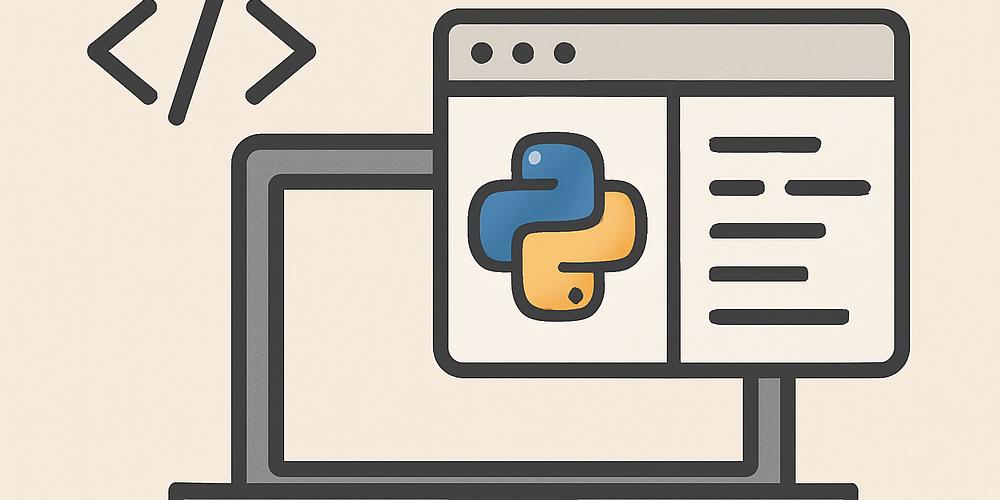
Python normally runs in a terminal, a notebook, a server, or an installed desktop environment. PyScript adds another possibility: running Python directly inside a web page. This makes it possible to combine Python code with HTML and CSS, create interactive demonstrations, process small datasets, and teach programming without asking every visitor to install Python first.
This guide explains how PyScript in the browser works, how to build a first page, how to connect Python with HTML elements, how to load packages, and when another technology is a better choice. The examples are beginner-friendly, but they also introduce the habits needed for maintainable projects.
What Is PyScript?
PyScript is an open web technology that lets a page execute Python through a browser-compatible Python runtime. Behind the scenes, the browser uses WebAssembly-based tools to run Python without a traditional local installation. The result is a web page in which HTML defines the structure, CSS controls the appearance, and Python handles calculations or interactions.
PyScript does not replace every Python environment. It is best understood as a bridge between Python and the browser. For a broader introduction to the language, read what Python is. The official PyScript documentation and the official project website provide the current installation snippets because the recommended loader syntax can change between releases.
When Is PyScript Useful?
PyScript is especially useful for educational pages, interactive documentation, small calculators, data demonstrations, prototypes, and internal tools. A teacher can place an editable Python example in a lesson. A data analyst can create a small browser-based visualization. A developer can test an idea before building a complete backend.
- Learning: students can experiment with Python in a familiar web page.
- Demonstrations: formulas and algorithms can produce visible results immediately.
- Data exploration: compatible packages can process local or downloaded data.
- Prototypes: an idea can be tested without creating a server first.
For larger data projects, a notebook may be more comfortable. The comparison between Google Colab and Jupyter Notebook helps explain when each environment is a better fit.
Create Your First PyScript Page
Start with a normal HTML file. Add the current PyScript loader lines copied from the official documentation, then place Python in the supported Python script block. The exact loader URL and attributes may vary by release, so do not copy an old version blindly.
<!doctype html>
<html lang="en">
<head>
    <meta charset="utf-8">
    <title>My first PyScript page</title>
    <!-- Add the current PyScript loader from the official docs -->
</head>
<body>
    <h1>Python in the browser</h1>
    <div id="output"></div>

    <script type="py">
from pyscript import document

document.querySelector("#output").innerText = "Hello from Python!"
    </script>
</body>
</html>
Open the file in a browser through a local development server. A server is preferable to double-clicking the file because browser security rules can block local resources. VS Code users can use a lightweight local-server extension or Python’s built-in server:
python -m http.server 8000Then open http://localhost:8000. The browser loads the runtime, executes the Python block, finds the element with the ID output, and changes its text.
Use Variables and Calculations
Once Python is running, normal language features remain available. You can create variables, call functions, work with lists, and calculate values. The difference is that the result must usually be sent to an HTML element instead of printed only to a terminal.
from pyscript import document

prices = [19.90, 7.50, 12.00]
total = sum(prices)
message = f"Cart total: ${total:.2f}"

document.querySelector("#output").innerText = message
This example combines Python built-in functions, a list, and an f-string. The same logic could be used in a shipping calculator, a grade simulator, or a unit converter.
Read Values from HTML Inputs
An interactive page needs to read user input. Create fields in HTML, locate them from Python, convert the values, and display the result.
<input id="price" type="number" step="0.01" placeholder="Price">
<input id="quantity" type="number" placeholder="Quantity">
<button id="calculate">Calculate</button>
<p id="result"></p>
from pyscript import document, when
@when("click", "#calculate")
def calculate_total(event):
price_text = document.querySelector("#price").value
quantity_text = document.querySelector("#quantity").value
try:
price = float(price_text)
quantity = int(quantity_text)
total = price * quantity
document.querySelector("#result").innerText = f"Total: ${total:.2f}"
except ValueError:
document.querySelector("#result").innerText = "Enter valid numbers."The event function runs when the button is clicked. Because browser fields return text, the code converts the values before calculating. The try and except guide explains how to handle invalid input more carefully.
Load Python Packages
PyScript can load many pure-Python packages and packages supported by its runtime. Configuration can be placed in the page or in a separate configuration file, depending on the project version and setup. Always check package compatibility before designing the whole application around it.
[packages]
packages = ["numpy", "pandas"]
With compatible packages loaded, you can work with arrays or tables in the browser. The English guides to NumPy and Pandas provide a useful foundation.
import numpy as np

values = np.array([10, 20, 30, 40])
average = values.mean()
print(average)
Package loading increases startup time, so load only what the page really needs. A tiny calculator does not need a complete data-science stack.
Organize a Larger Project
Do not keep hundreds of lines inside one HTML file. Move Python code to a separate file and keep HTML focused on structure. A simple project may look like this:
project/
├── index.html
├── app.py
├── styles.css
└── pyscript.toml
Use small functions with clear responsibilities. One function can read the form, another can validate data, and another can render the result. The Python functions guide is useful when structuring this logic.
Debugging PyScript
When nothing appears, open the browser developer tools. The Console tab usually shows loader errors, Python exceptions, blocked resources, or invalid selectors. Check these common causes:
- The PyScript loader was not added or points to an unavailable resource.
- The page uses syntax from a different PyScript release.
- The selected HTML ID does not exist.
- A package is not supported by the browser runtime.
- The page was opened directly instead of through a local server.
- An exception occurred before the output element was updated.
Temporary output statements help during development, but use meaningful messages. The guide to Python comments and code clarity can also improve maintainability.
Limitations You Should Know
Browser-based Python has important limits. Initial loading can be slower than a small JavaScript page because the runtime must be downloaded and initialized. Some libraries depend on native components that are unavailable. Browser security also restricts file-system access, operating-system commands, and certain network operations.
Do not place secrets, private API keys, database passwords, or privileged business rules in client-side code. Visitors can inspect files delivered to their browser. Sensitive operations belong on a protected server.
PyScript is also not the best option for every production interface. JavaScript and TypeScript have a mature browser ecosystem and may deliver smaller, faster pages. A traditional Python backend is more appropriate when you need authentication, protected database access, scheduled jobs, or server-side processing.
PyScript vs Traditional Python
| Aspect | PyScript | Traditional Python |
|---|---|---|
| Execution | Inside the browser | Local machine or server |
| Installation for visitor | Usually unnecessary | Often requires Python or a packaged app |
| System access | Restricted by browser security | Broader access according to permissions |
| Secrets | Must not be exposed | Can remain on a protected server |
| Best use | Interactive pages and demonstrations | Automation, APIs, servers, data pipelines |
Practical Project Ideas
- A tip, discount, or loan calculator.
- An interactive statistics lesson.
- A text analyzer that counts words and characters.
- A quiz that scores answers in the browser.
- A small CSV explorer using a compatible data package.
- A visualization that updates after the user changes parameters.
Frequently Asked Questions
Does PyScript replace JavaScript?
No. It offers a Python option for browser tasks, but JavaScript remains the native language of the web and is often the better choice for performance-sensitive interfaces.
Do visitors need Python installed?
Usually not. The browser loads the required runtime and executes the page code.
Can PyScript use every Python library?
No. Compatibility depends on the browser runtime and on whether the package can run in that environment.
Can I connect directly to MySQL?
A browser should not receive database credentials. Use a protected API or backend between the page and the database.
Is PyScript suitable for beginners?
Yes, especially for demonstrations, although basic HTML knowledge makes the experience much easier.
Conclusion
PyScript makes it possible to combine Python’s readable syntax with the reach of a web page. Start with a small output example, learn to select HTML elements, add events and validation, then experiment with compatible packages. Keep security and performance limits in mind, organize code into separate files, and consult the official documentation whenever the loader or configuration syntax changes.