Creating desktop applications may sound difficult at first. Many beginners think they need advanced programming skills or complex tools. The good news is that Python makes this process much easier.
With Tkinter, you can build windows, buttons, menus, forms, and interactive programs using simple Python code. Tkinter comes included with Python, so you do not need to install extra packages to get started.
In this guide, you will learn how to build your first desktop app with Python & Tkinter step by step. You will also understand how graphical user interfaces work and how to improve your applications over time.
If you are still learning the basics, check out Python for Beginners before diving into desktop development.
What Is Tkinter in Python?
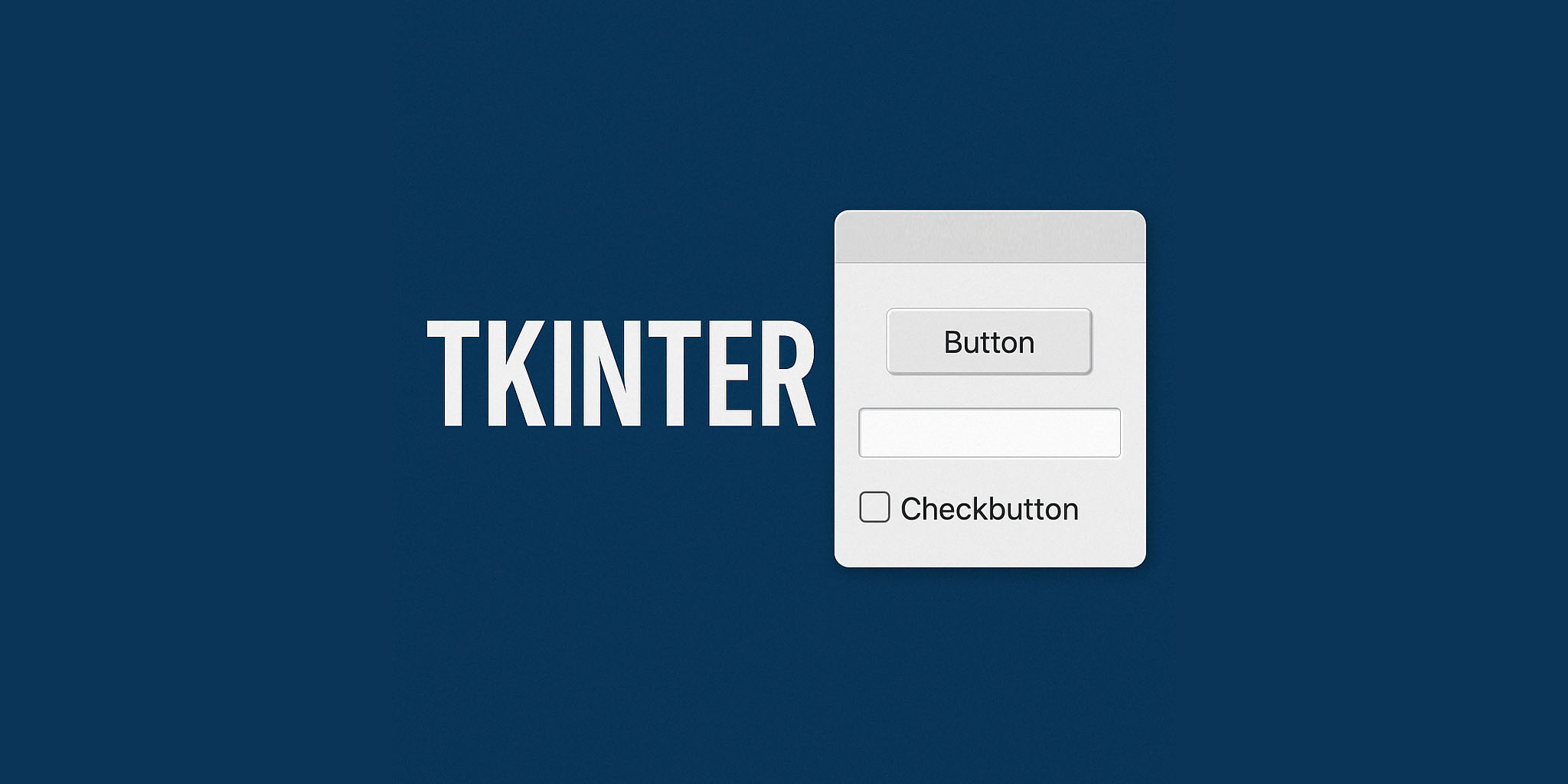
Tkinter is Python’s standard library for creating graphical user interfaces, also called GUIs. A GUI is any program that uses windows, buttons, text fields, and visual elements.
Instead of interacting only with the terminal, users can click buttons and type into forms.
Tkinter is beginner-friendly because:
- It comes preinstalled with Python
- Its syntax is simple
- It works on Windows, macOS, and Linux
- It helps you learn GUI programming concepts
Many beginner projects use Tkinter because it provides quick visual results.
Tip: Desktop apps are excellent portfolio projects for beginner developers.
Why Learn Desktop App Development?
Learning desktop development teaches important programming concepts. Even simple applications improve your problem-solving skills.
You also learn how users interact with software in real situations.
Desktop applications are useful for:
- Task managers
- Calculators
- Inventory systems
- Password managers
- File organizers
- Personal productivity tools
You can combine Tkinter with other Python libraries to create more advanced applications later.
For example, you can connect desktop apps with SQLite databases in Python or automate tasks using Python automation scripts.
Installing Python and Checking Tkinter
Before building your first desktop app with Python & Tkinter, make sure Python is installed correctly.
If you still need Python, follow this guide on how to install Python.
After installation, test Tkinter with this code:
import tkinter

print("Tkinter is working!")If no errors appear, you are ready to start.
You can also test whether Tkinter opens a window:
import tkinter as tk

window = tk.Tk()
window.mainloop()A small empty window should appear on your screen.
Understanding the Structure of a Tkinter App
Every Tkinter application follows a basic structure.
| Component | Purpose |
|---|---|
| tk.Tk() | Creates the main window |
| Widgets | Add buttons, labels, inputs, and menus |
| Layout Managers | Organize elements on the screen |
| mainloop() | Keeps the app running |
Think of the main window as the app container. Widgets are the visual components inside it.
Layout managers decide where elements appear on the screen.
Building Your First Tkinter Desktop App
Now it is time to create a real application.
This beginner project creates a simple greeting app with a text input and button.
import tkinter as tk

def greet():
    name = entry.get()
    message.config(text=f"Hello, {name}!")

window = tk.Tk()
window.title("My First Desktop App")
window.geometry("400x200")

label = tk.Label(window, text="Enter your name:")
label.pack(pady=10)

entry = tk.Entry(window)
entry.pack(pady=10)

button = tk.Button(window, text="Greet Me", command=greet)
button.pack(pady=10)

message = tk.Label(window, text="")
message.pack(pady=10)

window.mainloop()This program creates:
- A window
- A text label
- An input field
- A clickable button
- A greeting message
When the user types a name and clicks the button, the application displays a personalized greeting.
How Tkinter Widgets Work
Widgets are the building blocks of desktop applications.
Each widget has a specific purpose.
Label Widget
The Label widget displays text on the screen.
label = tk.Label(window, text="Welcome!")Button Widget
The Button widget triggers actions when clicked.
button = tk.Button(window, text="Click")Entry Widget
The Entry widget lets users type text.
entry = tk.Entry(window)Text Widget
The Text widget supports multi-line text input.
text = tk.Text(window)Understanding widgets is essential when building larger applications.
You can also explore concepts like functions in Python and conditional statements to improve your GUI logic.
Using Layout Managers in Tkinter
Layout managers organize widgets inside the window.
Tkinter provides three main layout systems:
- pack()
- grid()
- place()
pack()
The easiest option for beginners.
button.pack()It stacks elements vertically or horizontally.
grid()
Organizes elements into rows and columns.
button.grid(row=0, column=1)This layout works well for forms and calculators.
place()
Lets you position elements using exact coordinates.
button.place(x=50, y=100)Most beginners start with pack() because it is simpler.
Improving the Design of Your Desktop App
Basic apps work well, but visual improvements make them more professional.
You can customize:
- Window size
- Colors
- Fonts
- Button styles
- Padding and spacing
Example:
window.configure(bg="lightblue")

label = tk.Label(
    window,
    text="Welcome!",
    bg="lightblue",
    font=("Arial", 16)
)Simple design changes greatly improve user experience.
You can also learn modern coding practices with the official Tkinter documentation.
Common Beginner Mistakes in Tkinter
Every beginner makes mistakes while learning GUI programming.
Here are common issues and how to avoid them.
Forgetting mainloop()
Without mainloop(), the window closes immediately.
Mixing Layout Managers
Avoid mixing pack() and grid() in the same container.
Functions Not Running
Incorrect:
command=greet()Correct:
command=greetIndentation Errors
Python depends heavily on indentation.
If you struggle with this, read this indentation guide.
Projects You Can Build with Tkinter
After learning the basics, you can build many useful desktop applications.
Popular beginner projects include:
- Calculator apps
- To-do lists
- Quiz games
- Text editors
- Password generators
- File management tools
You can even create games with Python using other libraries like Pygame.
As your skills improve, you can combine Tkinter with:
- Databases
- APIs
- Automation scripts
- Machine learning models
- Excel tools
Desktop applications are excellent practice because they combine logic and visual interaction.
How to Turn Your Tkinter App Into an Executable File
After building your application, you may want to share it with other people.
You can convert your Python app into an executable file using PyInstaller.
Install PyInstaller:
pip install pyinstallerGenerate the executable:
pyinstaller --onefile app.pyThis creates a standalone application users can open without installing Python.
You can also learn more about turning Python scripts into EXE files.
For advanced packaging, visit the official PyInstaller documentation.
Conclusion
Building your first desktop app with Python & Tkinter is one of the best ways to improve your programming skills.
You learn how applications work visually while practicing Python fundamentals at the same time.
Tkinter is simple enough for beginners but powerful enough for real projects.
Start with small applications first. Focus on understanding widgets, layouts, and user interaction.
As you gain confidence, you can build more advanced desktop software with databases, APIs, and automation features.
The most important step is simple: keep building projects consistently.
Perguntas Frequentes (FAQ)
1. What is Tkinter in Python?
Tkinter is Python’s built-in library for creating graphical desktop applications.
2. Is Tkinter good for beginners?
Yes. Tkinter is one of the easiest GUI frameworks for new Python developers.
3. Do I need to install Tkinter separately?
No. Tkinter already comes included with most Python installations.
4. Can Tkinter create professional apps?
Yes. Many simple and medium-sized desktop tools use Tkinter successfully.
5. Does Tkinter work on Windows?
Yes. Tkinter works on Windows, macOS, and Linux.
6. What does mainloop() do?
It keeps the application window open and responsive to user actions.
7. Can I add images to Tkinter apps?
Yes. Tkinter supports images, icons, and custom graphics.
8. Is Tkinter better than PyQt?
Tkinter is easier for beginners. PyQt offers more advanced features.
9. Can I connect Tkinter to databases?
Yes. Tkinter works well with SQLite, MySQL, and other databases.
10. How do I share my Tkinter app?
You can convert it into an executable file using PyInstaller.