Python is one of the most popular programming languages in the world. It is beginner-friendly, powerful, and used in many areas like web development, automation, artificial intelligence, and data analysis.
If you want to start learning programming in 2026, installing Python on your PC is the first step. The good news is that the process is simple and takes only a few minutes.
In this guide, you will learn how to install Python on Windows, how to verify the installation, and how to fix common problems beginners face.
You will also discover useful tools and resources to improve your Python learning journey.
What Is Python?
Python is a high-level programming language created to make coding easier to read and write.
Many beginners choose Python because its syntax looks clean and simple. Companies also use Python for real-world applications like:
- Web development
- Machine learning
- Task automation
- Game development
- Data science
- Cybersecurity tools
If you are completely new to programming, this is one of the best languages to start with.
You can also read this beginner-friendly guide about what Python is to understand why the language became so popular.
Why Install Python on Your PC?
Installing Python locally gives you more freedom than using online editors.
When Python is installed on your computer, you can:
- Create real projects
- Install external libraries
- Use professional development tools
- Run scripts offline
- Learn faster with practical exercises
Many modern tools and frameworks require a local Python installation. For example, frameworks like Flask and libraries like Pandas work best on a properly configured PC.
System Requirements for Python
Python works on most modern computers.
| Requirement | Recommended |
|---|---|
| Operating System | Windows 10 or Windows 11 |
| RAM | 4 GB or more |
| Storage | 500 MB free space |
| Processor | Dual-core or better |
Even older computers can usually run Python without problems.
How to Download Python
The safest place to download Python is the official website.
Go to the official Python downloads page.
The website automatically detects your operating system and shows the best version for your PC.
Tip: Always download Python from the official website to avoid malware or outdated versions.
In 2026, Python 3 is the standard version. Avoid downloading Python 2 because it is outdated and no longer supported.
You can also learn the differences between versions in this guide about Python 2 vs Python 3.
How to Install Python on Windows
After downloading the installer, follow these steps carefully.
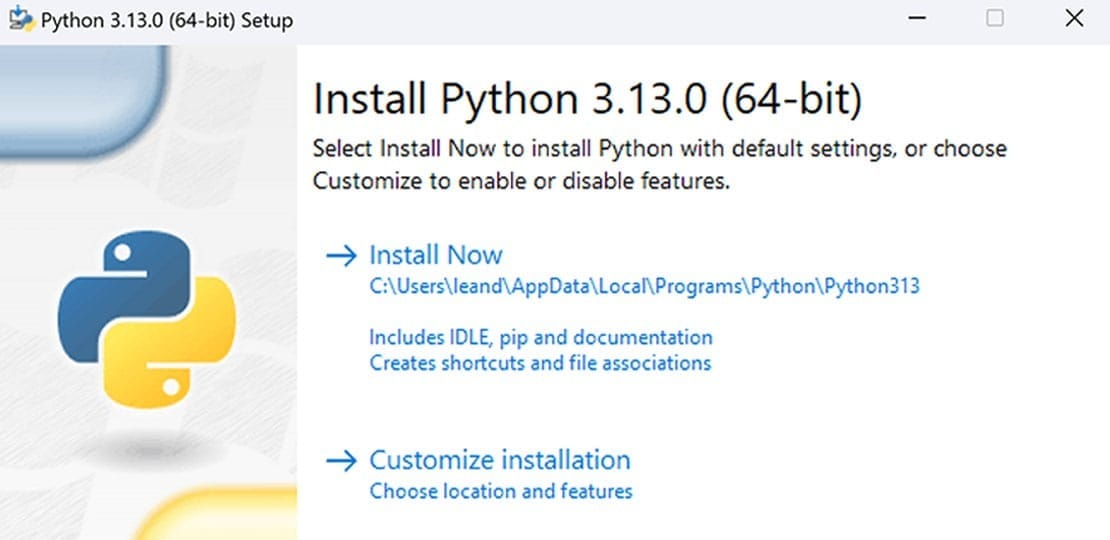
Step 1: Open the Installer
Double-click the downloaded file.
You will see the Python setup window.
Step 2: Enable PATH Option
Before clicking install, check the box:
Add Python to PATHThis step is extremely important.
It allows Windows to recognize Python commands in the terminal.
Step 3: Start the Installation
Click:
Install NowThe installation process usually takes less than five minutes.
Step 4: Finish the Setup
When the installation completes, click:
ClosePython is now installed on your computer.
How to Verify the Python Installation
Now you need to confirm that everything works correctly.
Open the Command Prompt
Press:
Windows + RThen type:
cmdPress Enter.
Check the Python Version
In the terminal, type:
python --versionYou should see something similar to:
Python 3.13.0If the version appears, Python is installed correctly.
You can also test:
pip --versionThe pip tool manages Python libraries and packages.
Learn more about installing packages in this guide about installing Python libraries with pip.
How to Run Your First Python Program
After installing Python, you can create your first script.
Open IDLE
IDLE is the basic editor included with Python.
Search for:
IDLEin the Windows Start Menu.
Then open it.
Create a Simple Program
Type the following code:
print("Hello, World!")Press Enter.
You should see:
Hello, World!Congratulations. Your first Python program is working.
If you want to understand how the print() function works, check this tutorial about print in Python.
Best Code Editors for Python Beginners
IDLE works well for small scripts, but most developers use more advanced editors.
Here are some popular options:
| Editor | Best For |
|---|---|
| VS Code | Beginners and professionals |
| PyCharm | Large Python projects |
| Sublime Text | Fast lightweight editing |
| Jupyter Notebook | Data science and AI |
Many beginners prefer VS Code because it is free and easy to customize.
You can improve your setup using these VS Code extensions for Python.
Microsoft also provides an excellent official VS Code Python tutorial.
Common Python Installation Problems
Some beginners encounter small issues during installation.
Here are the most common problems and solutions.
Python Is Not Recognized
Error message:
'python' is not recognized as an internal or external commandThis usually happens when the PATH option was not enabled during installation.
Solution:
- Reinstall Python
- Enable “Add Python to PATH”
- Restart the terminal
This guide explains the problem in detail: Python not recognized in terminal.
pip Does Not Work
If pip is missing, reinstall Python and make sure pip installation is enabled.
Most modern Python installers include pip automatically.
Wrong Python Version
Sometimes older versions remain installed on the PC.
Use:
python --versionto confirm the active version.
Should You Install Python or Use Online Editors?
Online editors are convenient for testing code quickly.
However, installing Python locally offers many advantages.
| Local Installation | Online Editors |
|---|---|
| Works offline | Requires internet |
| Supports all libraries | Limited features |
| Better for real projects | Good for small tests |
| Faster performance | Can be slower |
If you are serious about learning programming, installing Python on your PC is the best choice.
What to Learn After Installing Python
Once Python is installed, the next step is practicing.
Start with beginner topics like:
- Variables
- Data types
- Loops
- Functions
- Conditional statements
These tutorials can help:
- Variables in Python
- While loops in Python
- If, elif, and else in Python
- Functions in Python
- Python beginner guide
Building small projects is one of the fastest ways to improve.
Beginner Tip: Practice coding every day, even if only for 20 minutes. Consistency matters more than long study sessions.
Conclusion
Learning how to install Python on your PC is the first milestone in your programming journey.
The process is simple, beginner-friendly, and only takes a few minutes.
After installation, you can create scripts, automate tasks, build websites, and even explore artificial intelligence.
Python remains one of the best programming languages to learn in 2026 because of its simplicity and huge community support.
Now that Python is installed, the next step is simple: start building projects and practicing regularly.
Frequently Asked Questions (FAQ)
1. Is Python free to use?
Yes. Python is completely free and open-source.
2. Which Python version should I install?
Install the latest Python 3 version available.
3. Can I install Python on Windows 11?
Yes. Python fully supports Windows 11.
4. What is pip in Python?
pip is the package manager used to install libraries.
5. Do I need internet after installing Python?
No. You can run local scripts offline.
6. Is Python good for beginners?
Yes. Python is one of the easiest languages to learn.
7. Why is Python not recognized in CMD?
Usually because PATH was not enabled during installation.
8. Can I have multiple Python versions installed?
Yes. Many developers use multiple versions.
9. Which editor is best for Python?
VS Code is one of the best choices for beginners.
10. How long does Python installation take?
Usually between 2 and 5 minutes.